Add an external link to a session
Edited
You can add a link to an external video platform in your session information. This is typically used for classes or meetings that use Zoom, Teams, or other video platforms.
Locate the Session you are adding a link to
Log into your SignGlasses account
Select the Calendar page on the left-hand side of your screen
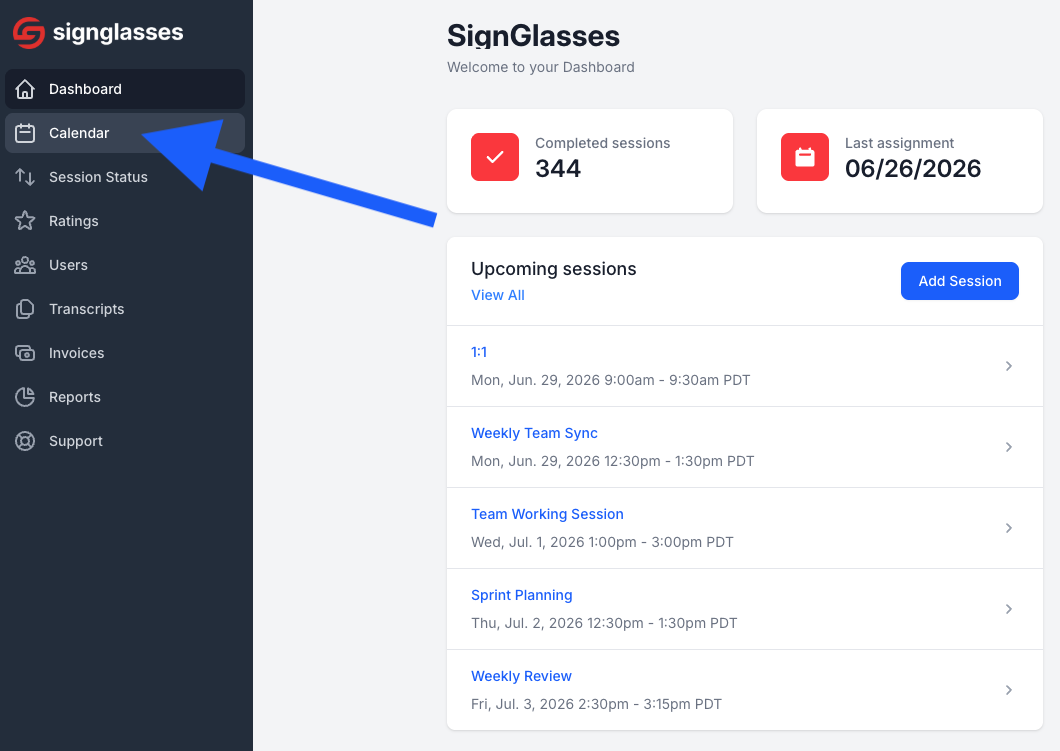
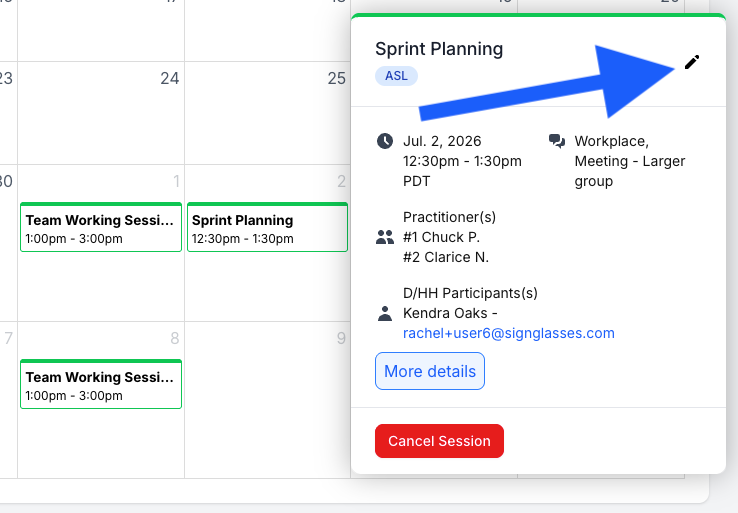
Find the session and click on it
Select the pencil icon at the top-right of the pop-out window
Add the external link
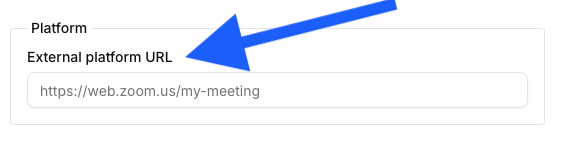
You will be using an external link (Zoom, Teams, etc.) for your SignGlasses sessions. -
Under Platform at the top-right, enter in the meeting link.
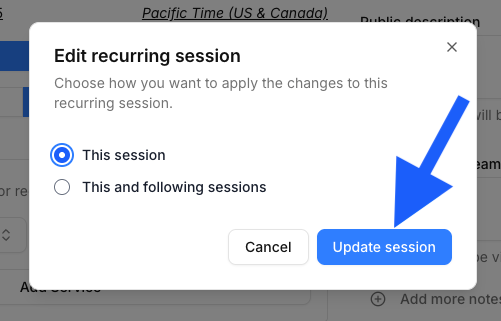
When you're done, click the blue [Update Session] button to save or [Cancel] to the cancel the changes.
If this is a recurring session, you'll see an option to apply this change to just this session or to this and following sessions.
Was this article helpful?
Sorry about that! Care to tell us more?