Request Services
You can request services directly from your SignGlasses Dashboard. Your request creates a SignGlasses session using the information you provide.
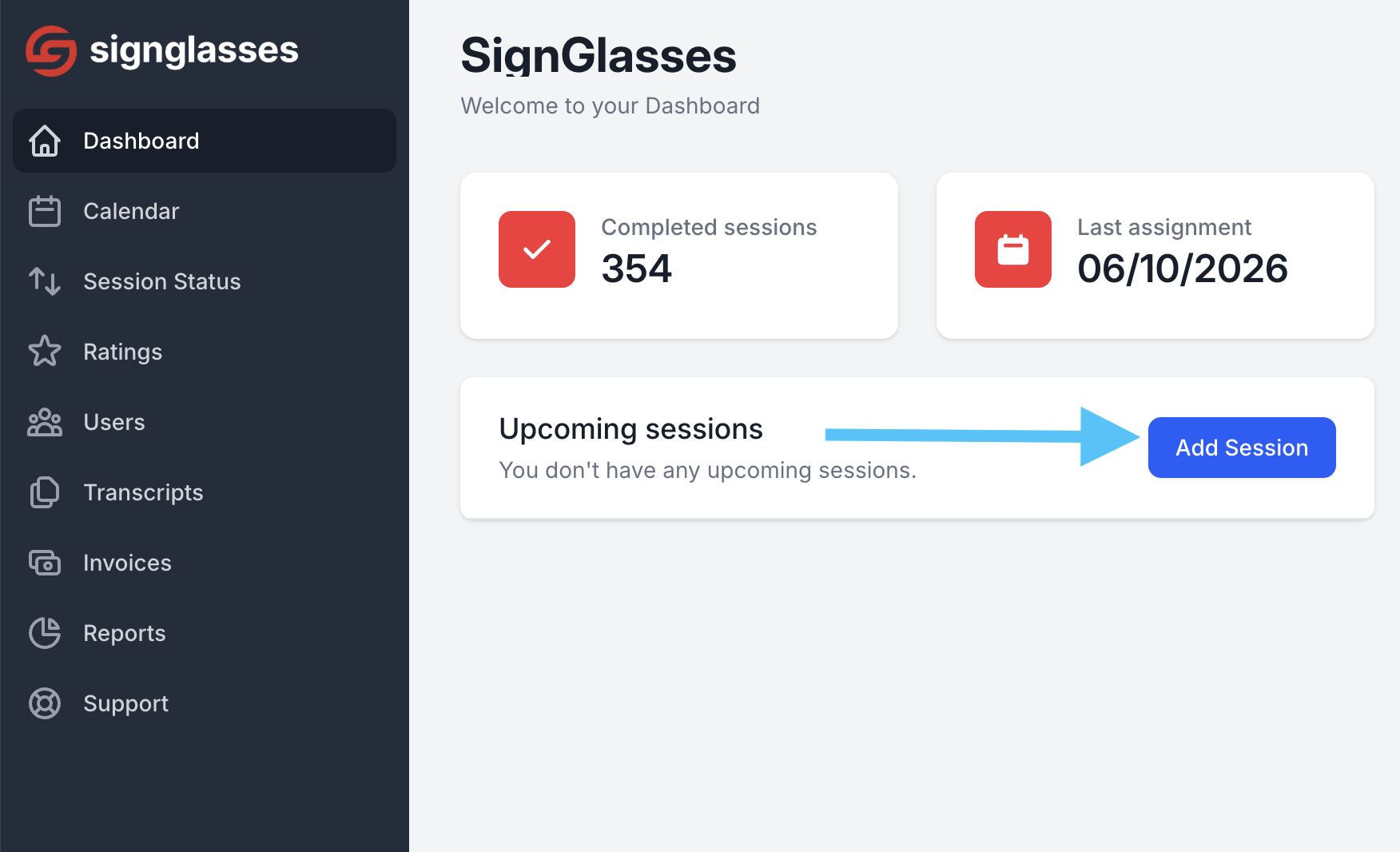
Click the "Add Session" button
Log into your SignGlasses account
Click the blue [Add Session] button near the center of the screen in your Dashboard
Add the Session Details
Add the Title
Select the Category
Enter in the Date and Time
If this is a repeating session,
Select Repeats
The days the session will occur
When the session will end
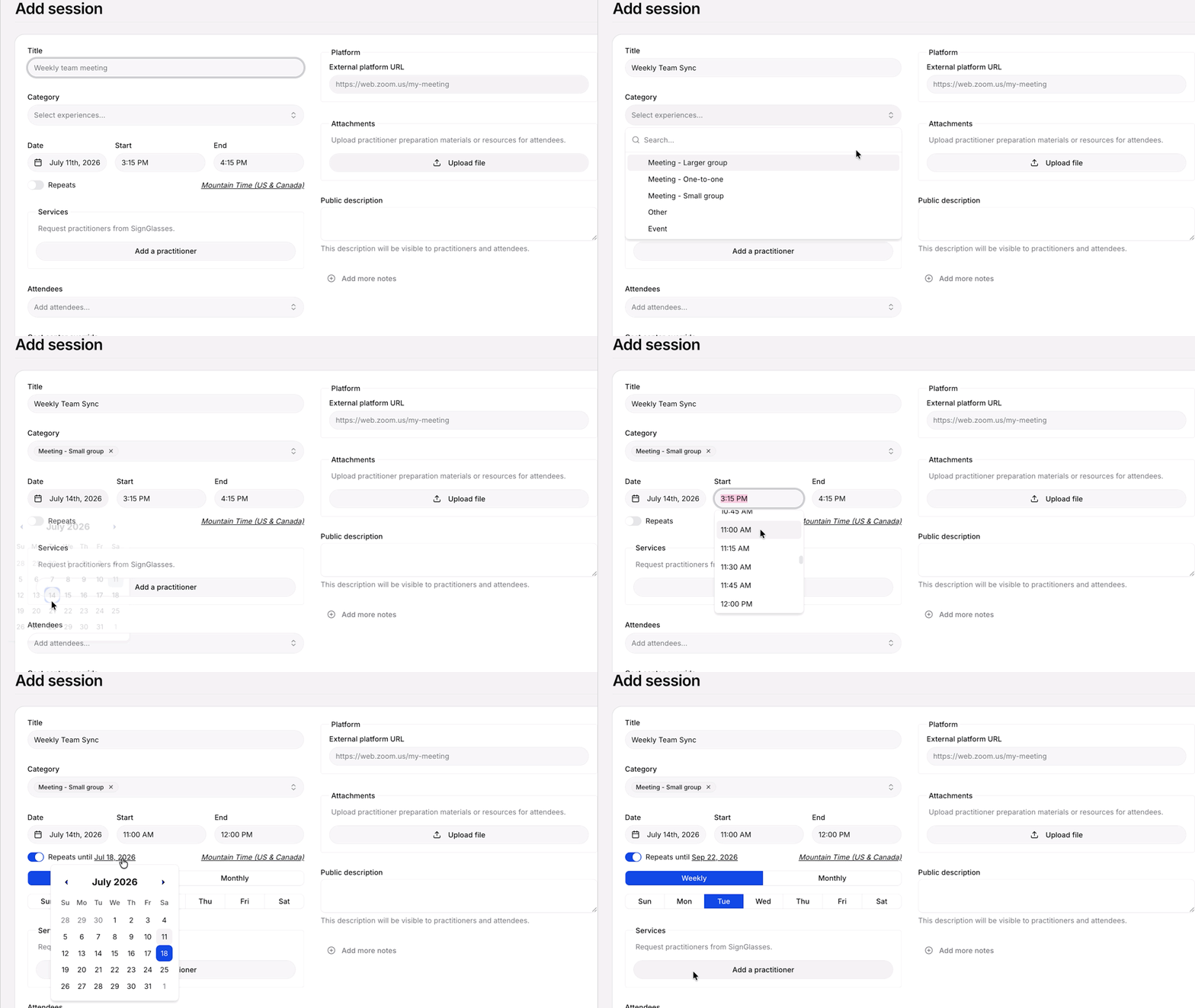
Notice there is a timezone option. If you are scheduling for users in other timezones, you can set this to their time zone and schedule it for the time it will be for them.
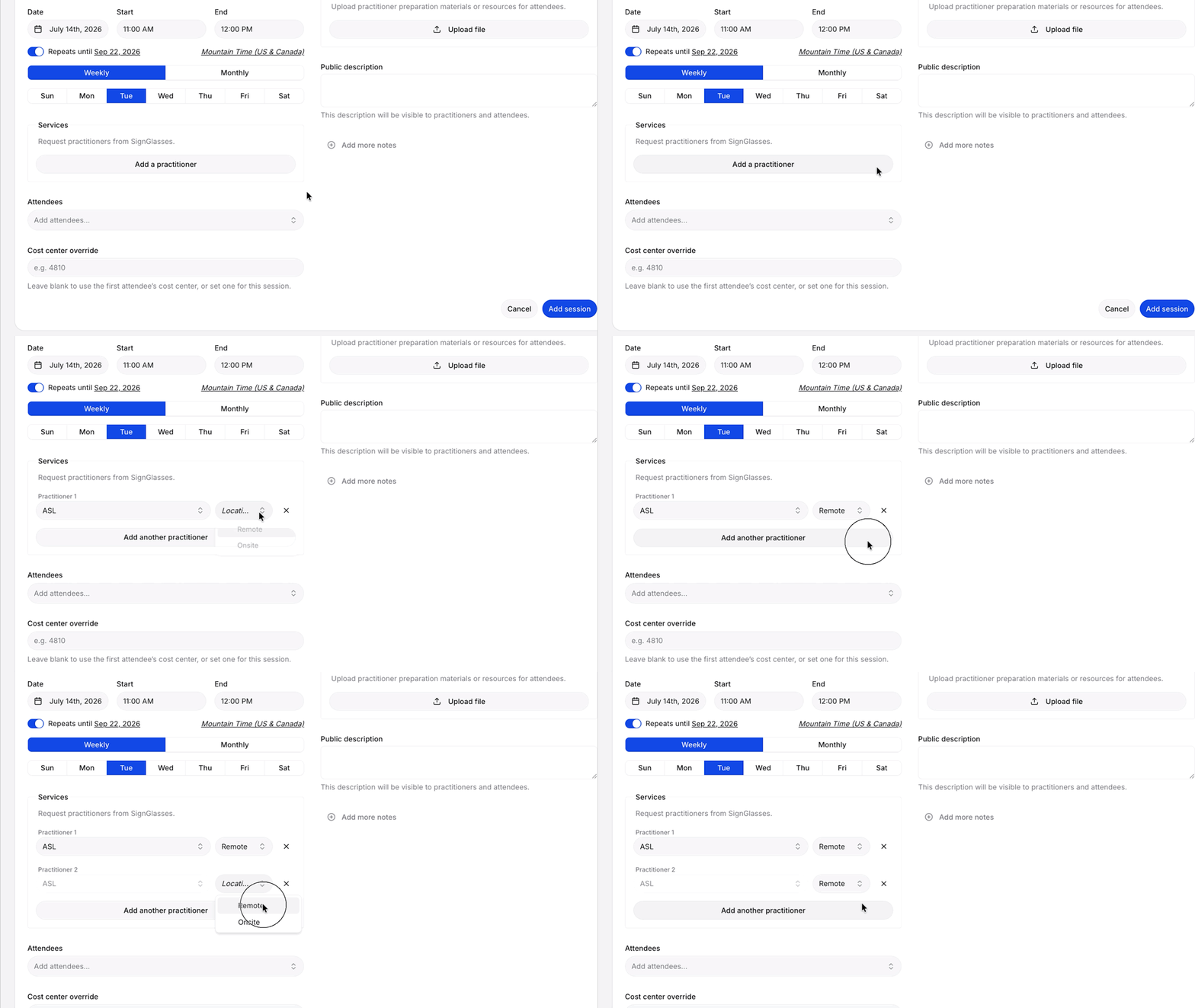
Select the Service Type
Click the [Add a Practitioner] button
From the drop-down on the left, choose between ASL, CART, and TYPEWELL.
From the drop-down on the right, chose between a Remote or Onsite
Click [Add another practitioner] and repeat this process if you want more than one practitioner
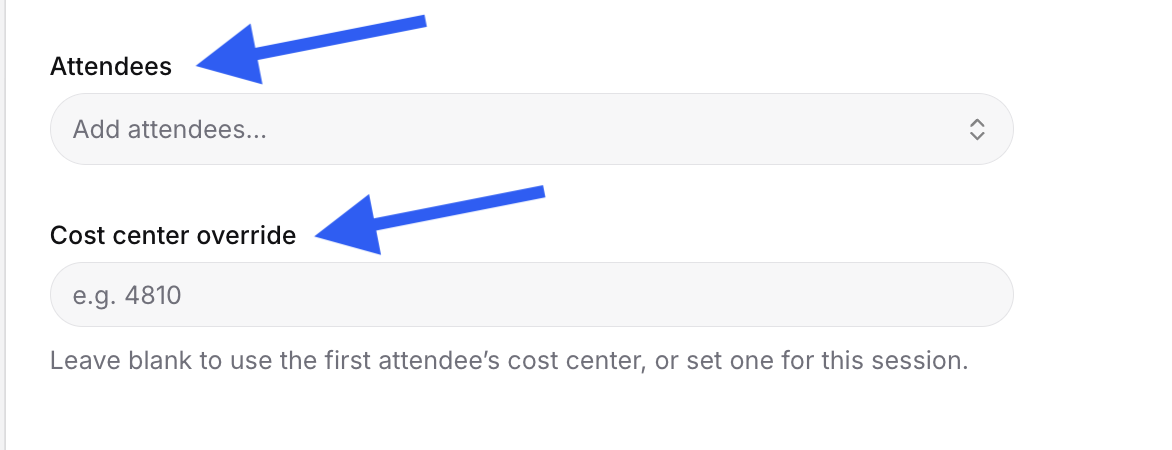
Add the User & Cost Center Number
Select the name of the user(s) for this session from the Attendees drop-down menu.
Enter the Cost Center Number for this session
Add the meeting link
You will be using an external link (Zoom, Teams, etc.) for your SignGlasses sessions. So, under Platform at the top-right, enter in the meeting link.
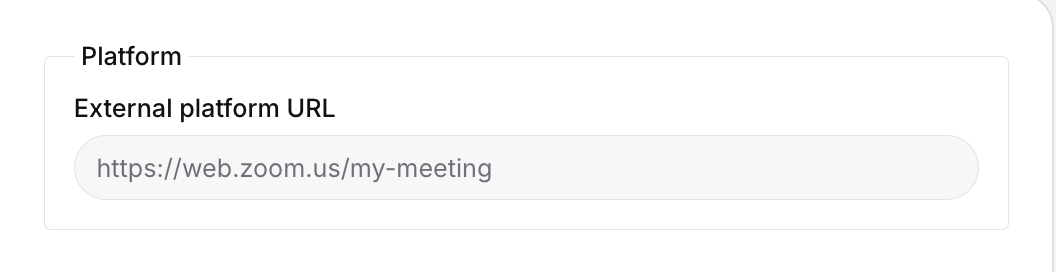
If you do not have the link yet, leave the URL section blank. We will send you 2 email reminders to add the link if one hasn't been added yet.
The 1st email: Will be sent 24 hours before the session
The 2nd email: Will be sent 1 hour before the session
Add Prep Materials
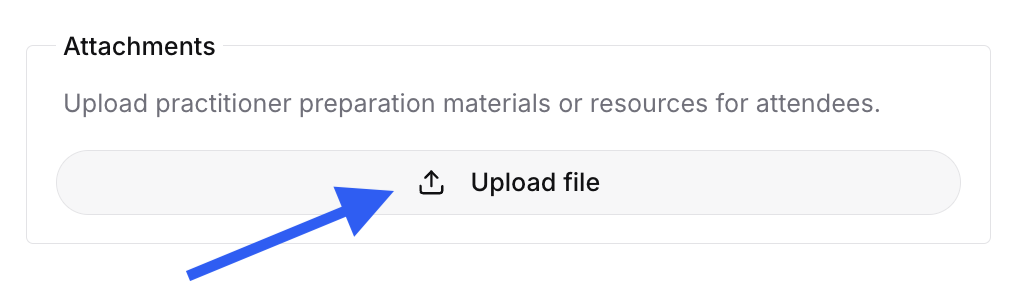
Under Attachments, add any additional resources that may be useful for the practitioners by clicking [Upload File] and selecting the files.
Examples of helpful materials include:
Presentation Slides
Discussion Documents
Meeting Agendas
Share Additional Information
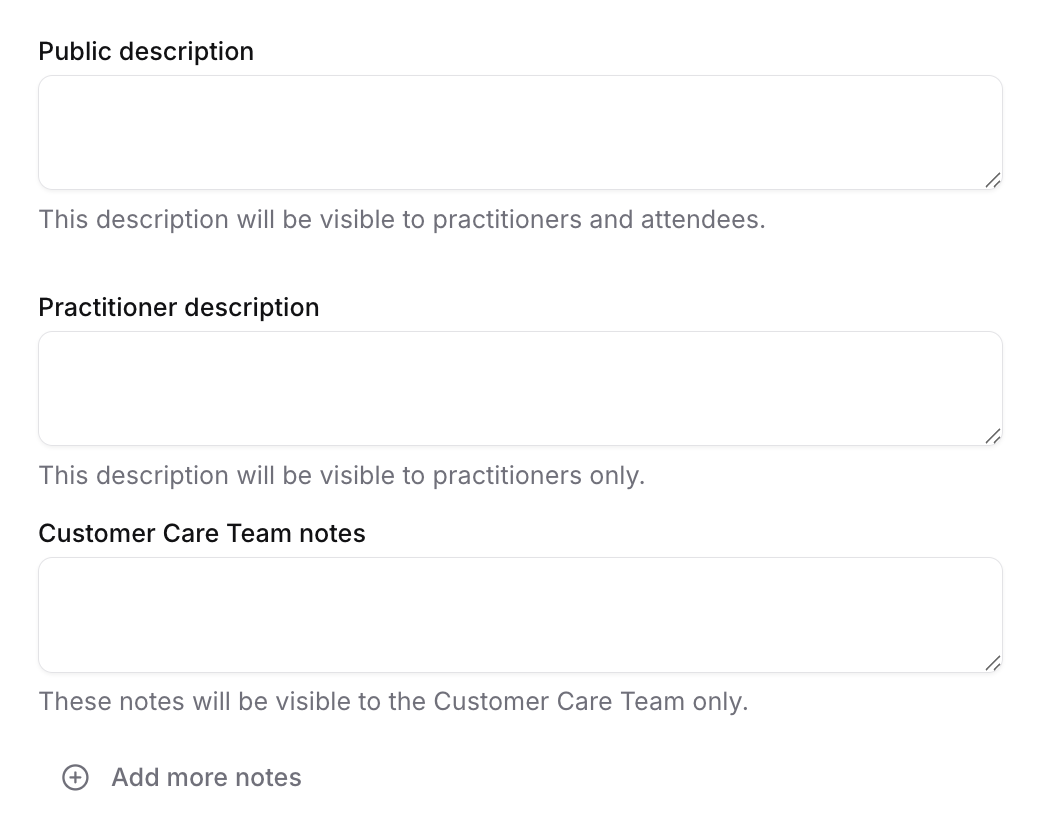
There are optional text boxes that you can add information to.
Public Description: This is typically for general information. This can include the agenda, what the meeting is about, etc. Everyone in the session can read this.
For other notes options, click + Add more notes and select from the options below:
Add notes for attendee : Information here is for the attendee/user only. (The practitioners in this session will not see this.)
Add notes for practitioner: Information here is for the practitioner only. (The attendee/user in this session will not see this.)
Add notes for Customer Care Team: This is good place to share preferred practitioners, contact info, or anything SignGlasses may need to know. Information here is only seen by the SignGlasses Customer Care Team.
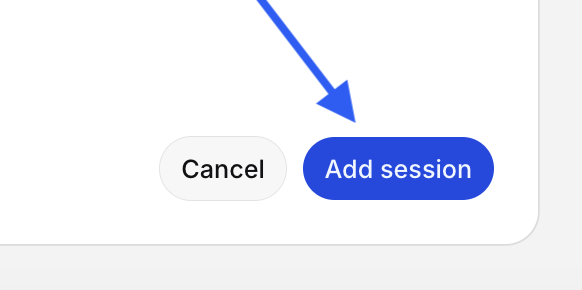
Click "Add Session"
Once you have filled in all the necessary information, click the blue [Add Session] button. Then you'll be all set!
Any questions? Contact us at ops@signglasses.com