Access your SignGlasses Session
This guide will walk you through accessing your sessions in SignGlasses.
Log in to SignGlasses
We use your Okta SSO to allow you access to SignGlasses.
First, make sure you are logged in to Okta
Go to signin.signglasses.com
Enter in your work email address and you will be logged in
Review the Session Information
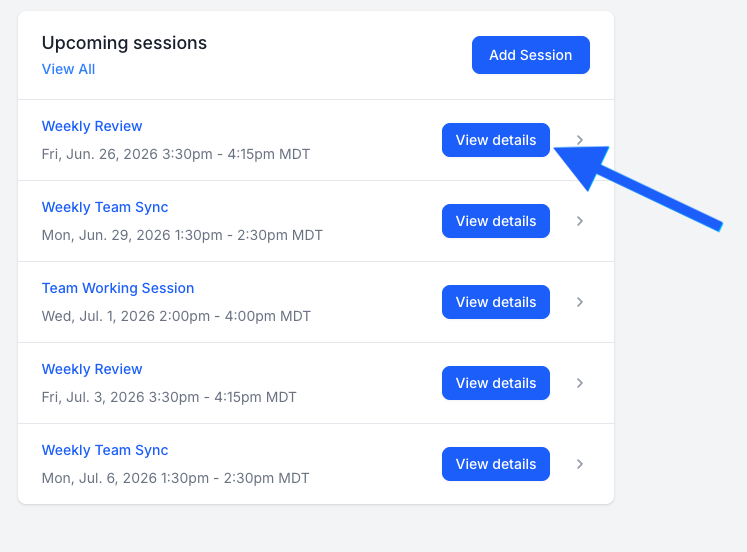
On your Dashboard, locate the session you want to open and click [View Details]
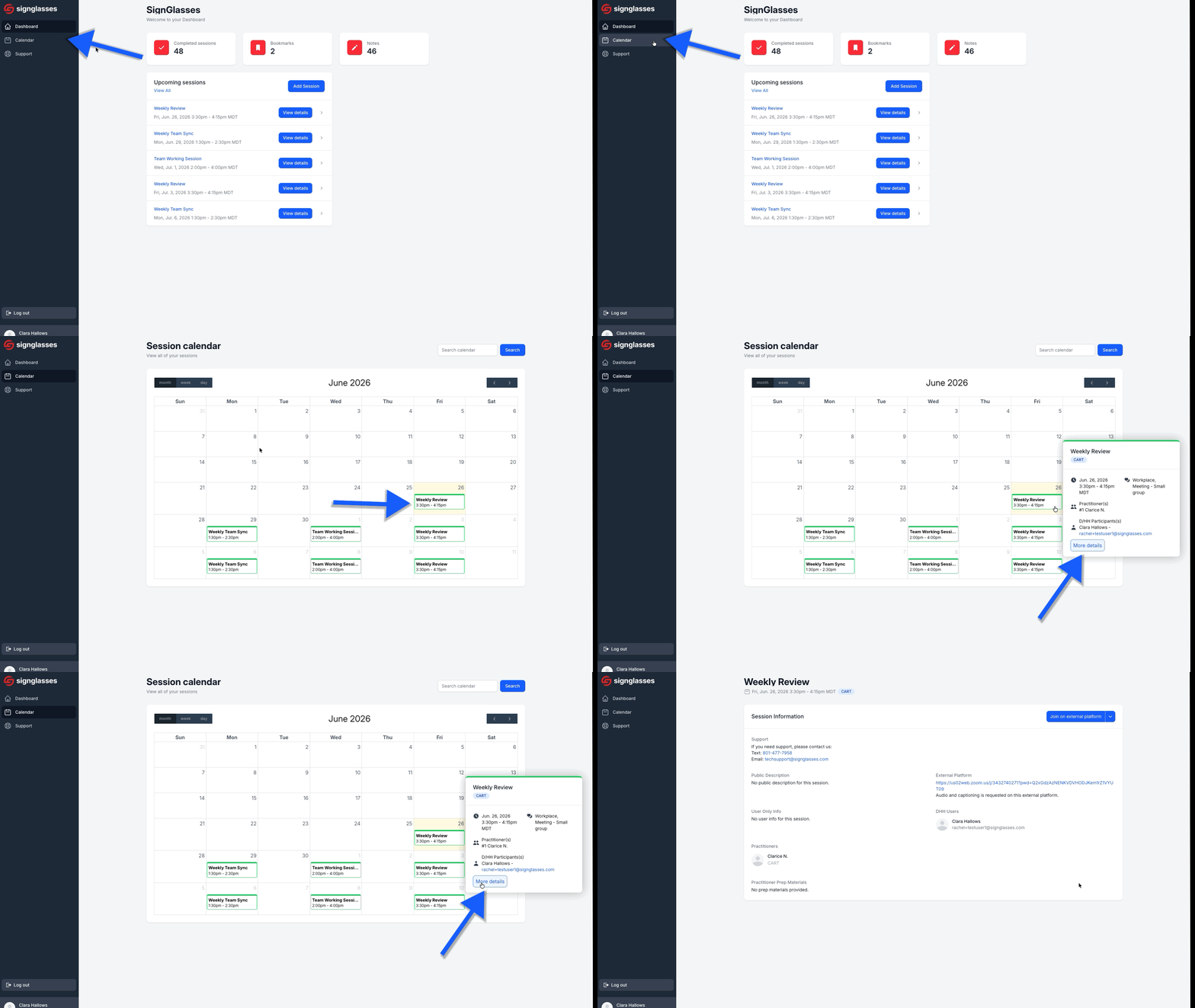
You can also find the session in your SignGlasses calendar. To do this
Select Calendar at the left-hand side of your screen
Click on the session
Select [More Details] or [View Details] and see the info there
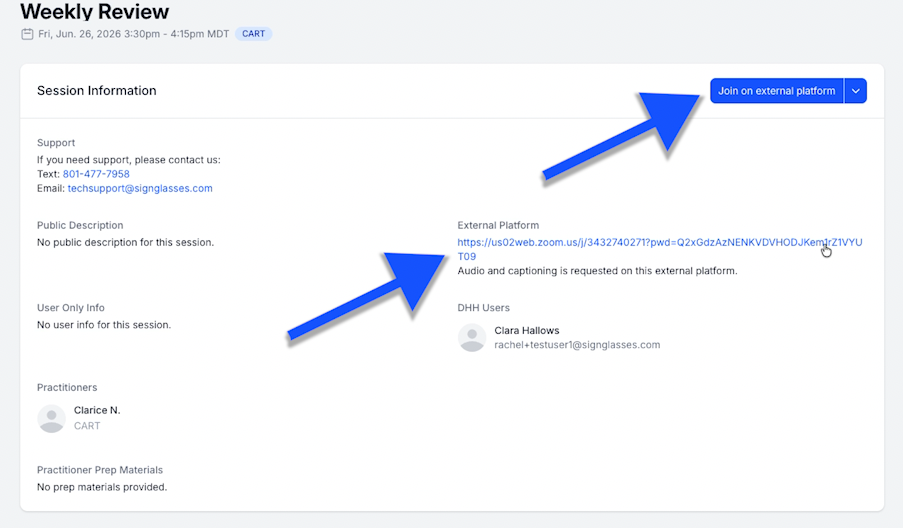
Here you can see:
SignGlasses Support contact info
Assignment details
The external platform link being used
The names of your captioner or interpreters
Any added prep materials
Join the Meeting
Click on the blue [Join on external platform] button or the meeting link on the page to join your meeting
Any questions? Reach out to us at techsupport@signglasses.com or text us at (801) 477-7958.